

Taxes
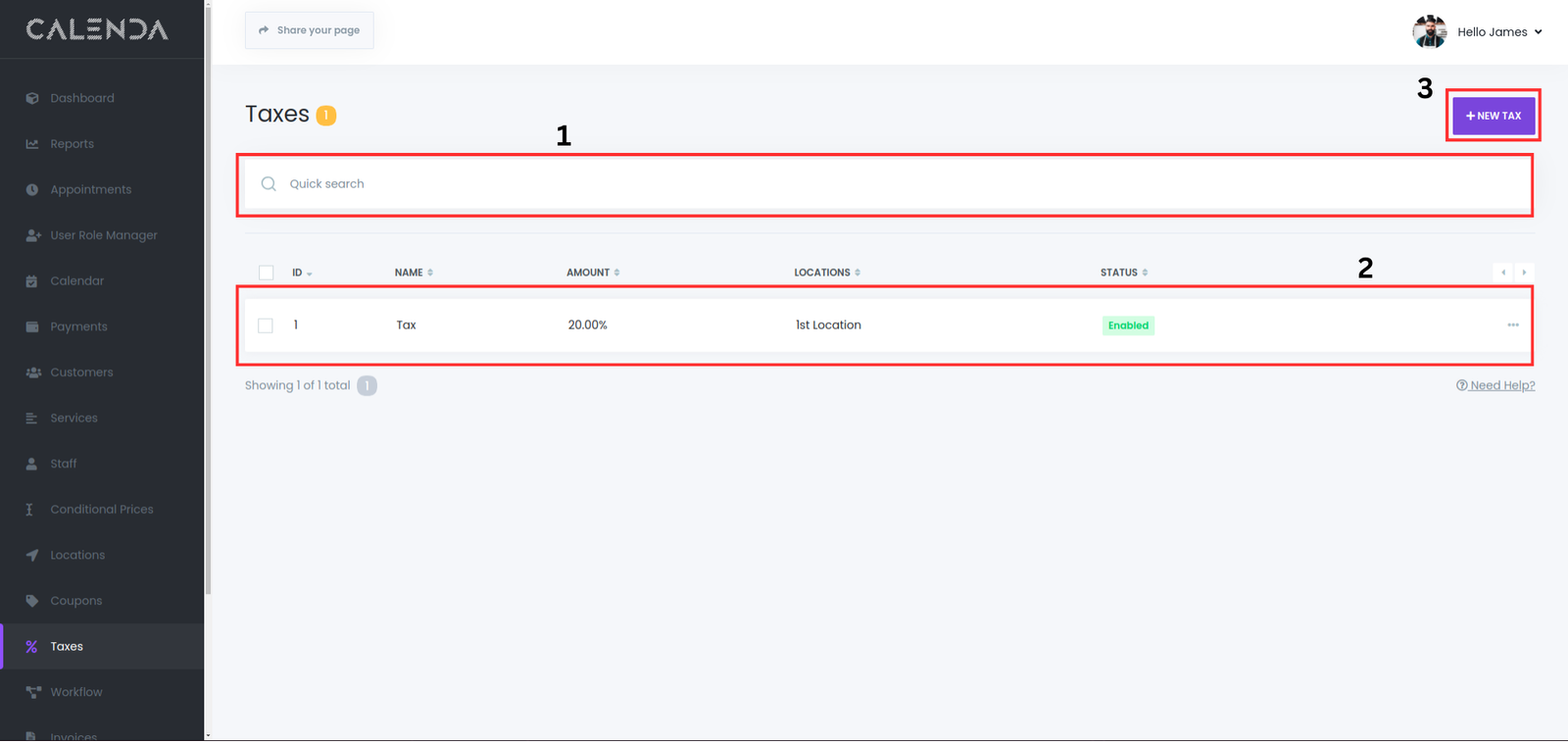
- Quick Search:
- A search bar that allows users to quickly search for taxes.
- Appointments List
- Displays all the appointments in a tabular format.
- Columns:
- ID: A unique identifier for each location.
- Name: The name of the taxes.
- Amount: The amount of the taxes
- Location: The location where the tax is applied
- Status: whether the tax is enabled or not
- +New Tax:
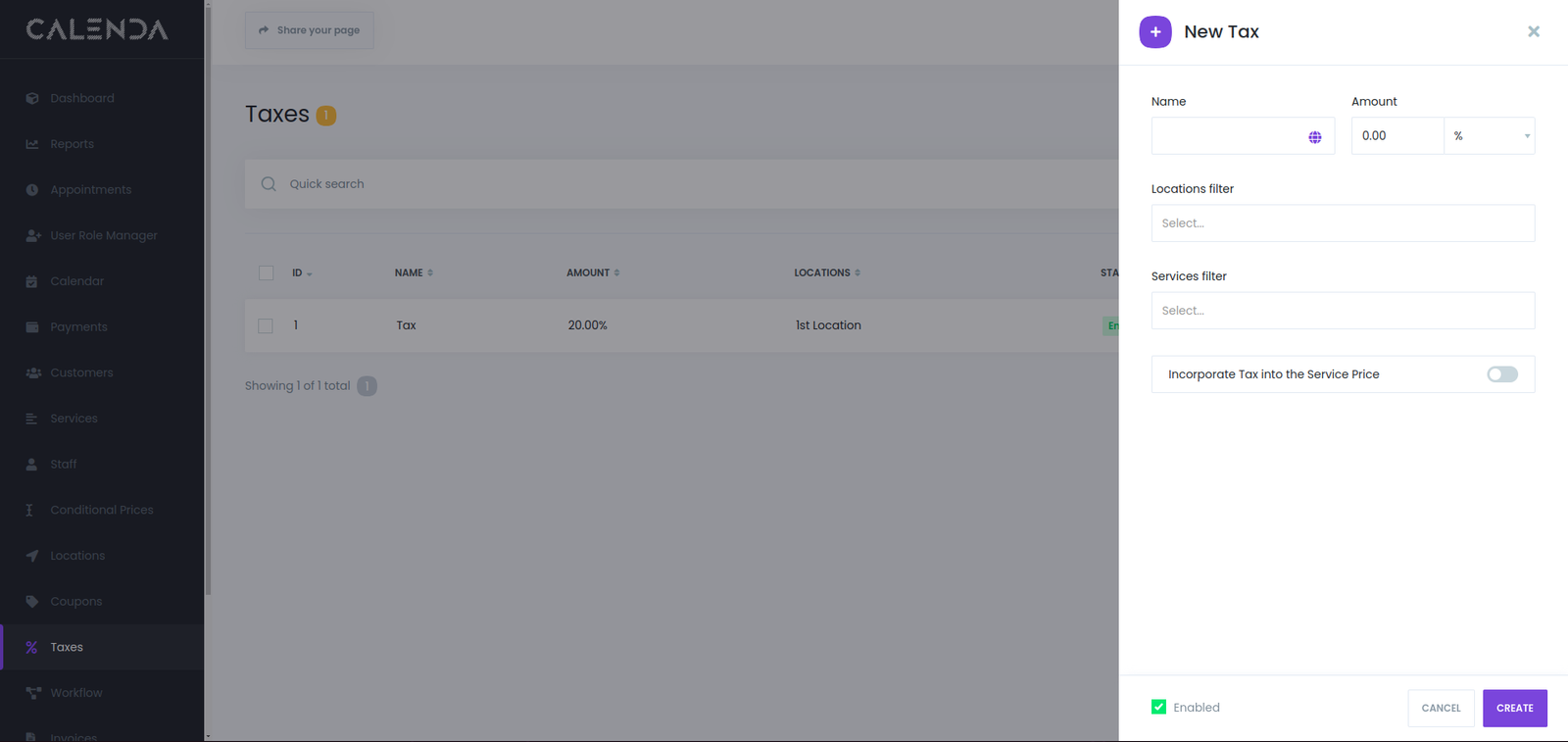
- Name Field:
- A text input field labeled “Name” where the user can enter a unique identifier for the new tax (e.g., “Sales Tax” or “VAT”).
- Amount Field:
- A numeric input field labeled “Amount” allows the user to define the tax percentage. The default placeholder value is “0.00%”, and a toggle lets the user switch between percentage or flat amount options.
- Locations Filter:
- A dropdown field labeled “Locations filter” enables the user to select specific locations where the tax will apply.
- Services Filter:
- Another dropdown field labeled “Services filter” lets the user specify which services the tax applies to, such as haircut, kids, or hair massage.
- Incorporating Tax into the Service Price:
- Means that the tax is already included in the total price of the service. In this case, the customer sees a single price for the service, which already accounts for any applicable taxes. The tax will not be displayed separately; it is embedded within the overall service cost
Was this article helpful?